Running an event as head judge
How to run an event with these tools, from getting access to sharing the results. The site is freestylejudge.com. If the venue's internet is weak, also read Running the system locally.
Step 1: Get permissions
Create an account
Go to freestylejudge.com, click Log in and sign in with Discord. Signing in the first time makes your account.
Then open Profile in the Control Panel and link your player, so your account knows which player you are.
Ask for Event Creator and Head Judge access
Email Ryan Young at ryan@smilesair.com and ask for access to the Event Creator and Head Judge. Once it is given, the Control Panel shows those tools.
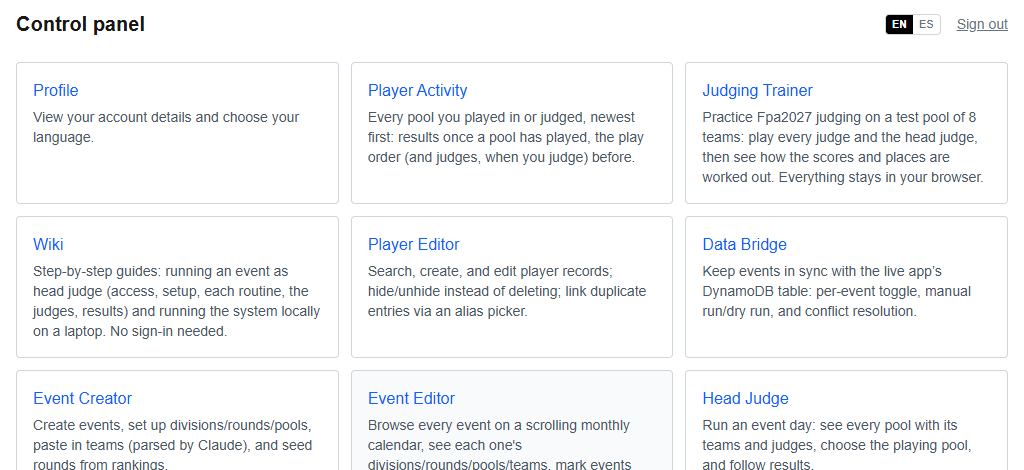
If you will run the event on a laptop without internet, ask for an email and password sign-in too (Discord needs the internet). Profile shows whether your account has one.
Step 2: Set up the event
Everything here is in the Event Creator (Control Panel → Event Creator).
Create the event
On the Events tab, under New event, enter the event's name and dates and click Create event. Then choose it from the event list.

Add divisions
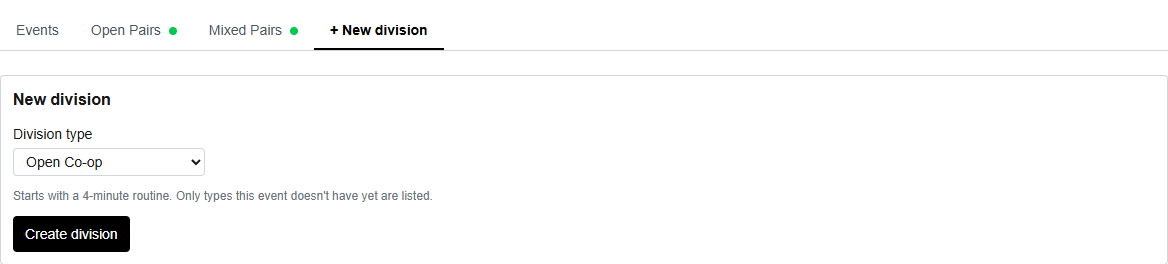
An event starts with no divisions. Open the + New division tab, pick the division type (Open Pairs, Mixed Pairs, Open Co-op, Women Pairs and so on) and click Create division. Each division then has its own tab.
Set the judging rules
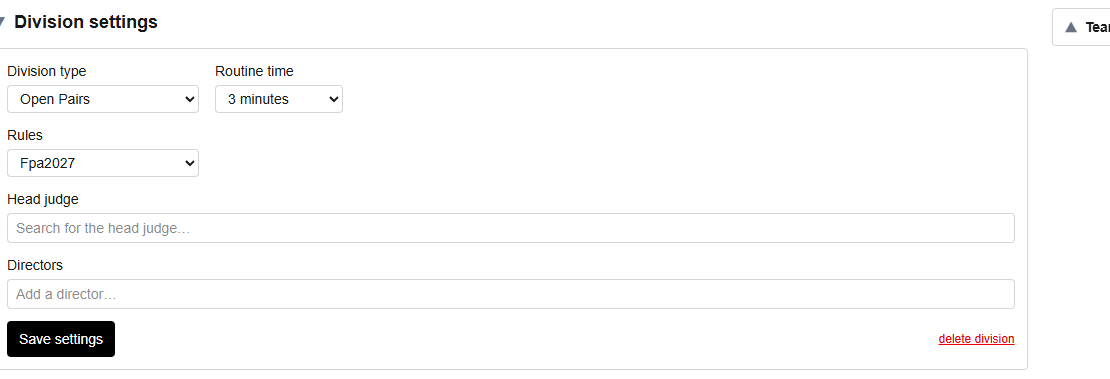
In each division's tab, set the routine time (3, 4 or 5 minutes) and the Rules:
- Fpa2027: the full judging system, with Difficulty, Execution and Artistic Impression judges. Every judge's score is added up and the team with the most points wins.
- Simple Ranking: no assigned judges. Anyone ranks the teams from best to worst on their phone. The best team gets 1 point, the next 2, and so on; the team with the fewest points wins.
Click Save settings. Changing the dropdown alone doesn't save it. An older division may show Fpa2020 (the old system): its judges never appear on the judging page, so switch it to Fpa2027.
Add teams to the divisions
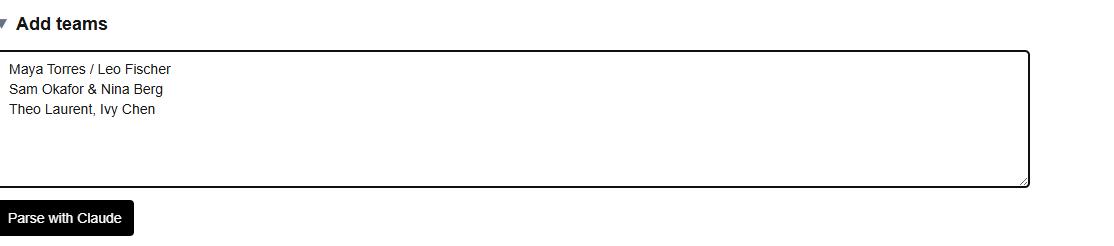
- One division: in the division's Add teams section, paste the teams in any format (one team per line, a copied spreadsheet…) and click Parse with Claude.
- Several divisions at once: on the event, use Add teams to several divisions with Claude (for example a spreadsheet with a heading row per division). Divisions the event doesn't have yet are created.
- From registration: Add players and teams from registration builds the teams from the Event Registration sign-ups. Tick Only paid registrations to leave out unpaid ones.
Each name is matched to a player. Check the list: Matched, Needs review (pick the right player) or New player? (create one). A team with an unresolved player is skipped.
Add rounds and teams to the pools
Each division has rounds (Preliminaries, Quarterfinals, Semifinals, Finals). In a round, choose how many pools and click Save.
For the first round, Seed from rankings fills the pools from the current rankings, in seed order. You can also drag teams from the Teams list into a pool, and drag them within or between pools. The order in a pool is the play order everyone follows.
For a later round, set Teams per pool and click Fill from results once every pool of the round before has its results. Teams that had a bye go in first, then the teams that advanced by place (every 1st, then every 2nd, and so on).
Add judges to each pool
Click Set Judges under a pool. A list of players opens at the bottom of the screen: drag each judge into their category's column (Diff, AI, Ex). Simple Ranking pools have no judges.
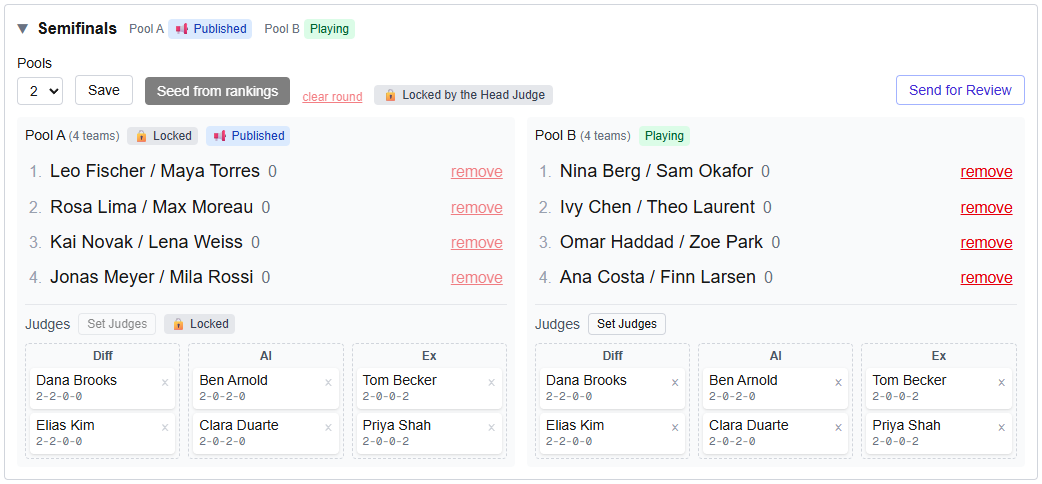
Optional
- Send for Review on a round asks the division's directors and the event's committee to check its pools in Pool Review (by Discord message).
- Set the event's Discord channel to have the play orders and results posted there.
Turn on Playing when judging starts
On the Events tab, turn on the Playing switch in the event's row under Recent events. Only playing events show their judges on the judging page.

Step 3: Run the event
Open Head Judge
Sign in on the head judge's computer, open Head Judge from the Control Panel and pick your event on the Events tab.
Next to the event's name is the Judge PIN (2 digits). Every judging device enters it once. New PIN makes a new one and signs every device out. Test events have no PIN.

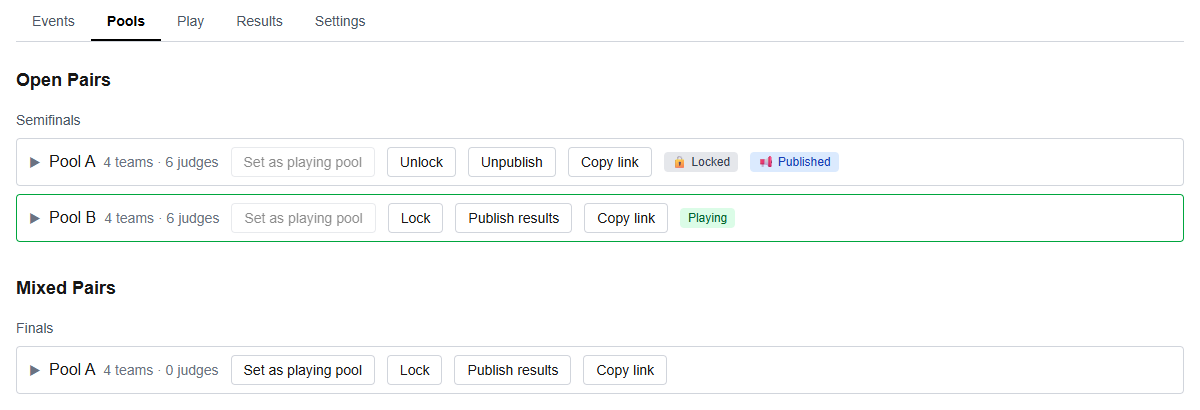
Set the playing pool
On the Pools tab, click Set as playing pool on the pool that plays next. Every judge's screen follows it by itself.
Choose the team that is up
On the Play tab, click the team in the team list. The first team is chosen when the pool is set. The judges are listed with a dot that shows whether each judge's screen is connected.
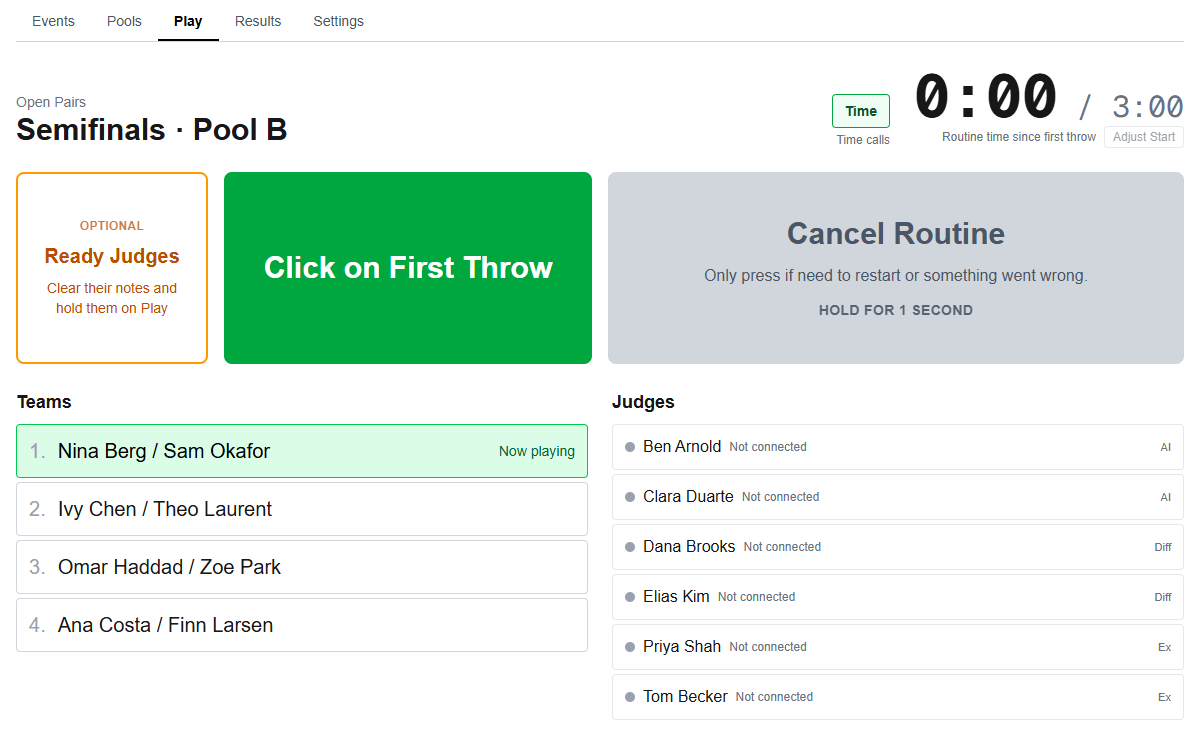
Click on First Throw on the first throw of the routine
This starts the routine and the timer on every screen.
Wait for the judges. Each one shows Finished once they have submitted their score. When all of them have, click Click to move to the next team (or Click to finish the last team). Then repeat for the next team.
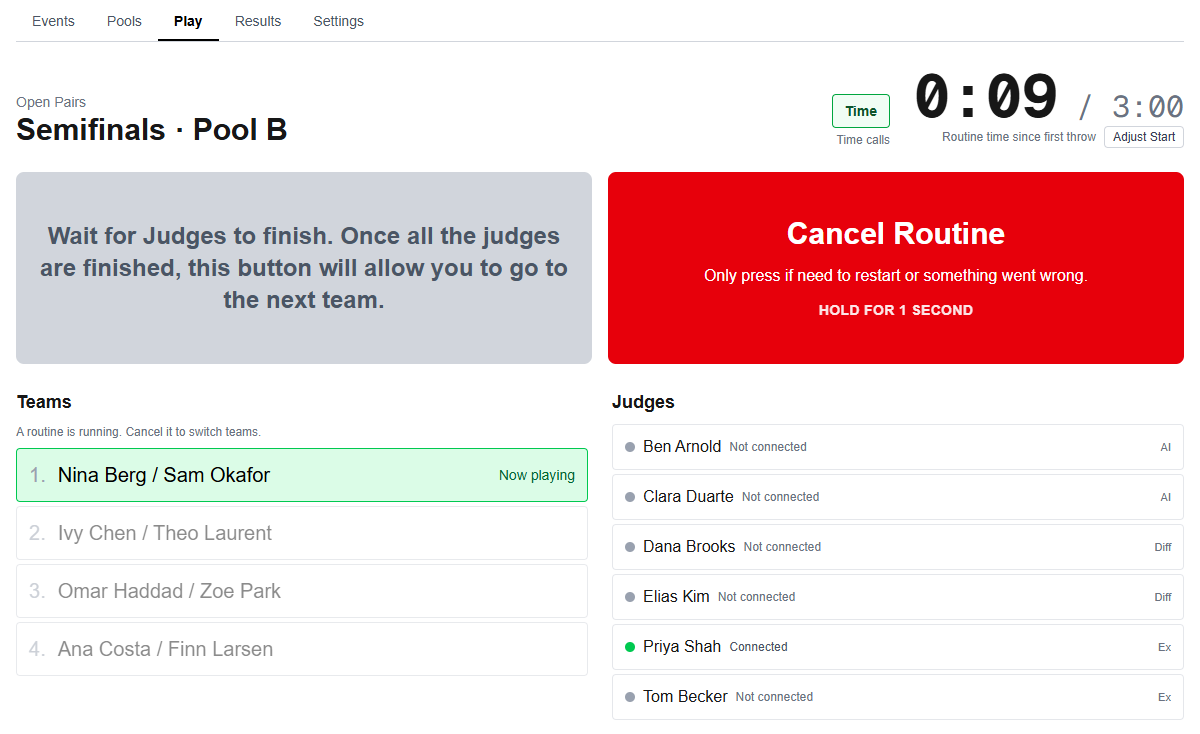
If something goes wrong
- Started the wrong team or too early: hold Cancel Routine for 1 second, choose the right team and start again.
- Cancelled by mistake: hold Restore Cancelled Routine Scores for 1 second.
- A judge submitted by mistake: start that team's routine again for that judge. Their newest score counts.
Lock the pool when it is finished
Lock on the Pools tab stops its scores, teams and judges from being changed anywhere. Unlock always works.
Optional: the announcer and the music
- Copy announcer link (next to the event's name) gives a page for the announcer, with the pool on stage, who is up and the timer. No sign-in needed.
- Event Music plays each team's song on the music computer and follows the team that is up.
Step 4: Set up the judges
On each judge device, go to freestylejudge.com
Do not sign in on these devices. The judge buttons only show when signed out (or use a private window).
Press the judge's own button
Each playing event shows a button per judge of the playing pool, with their name and category. Each judge presses their own.
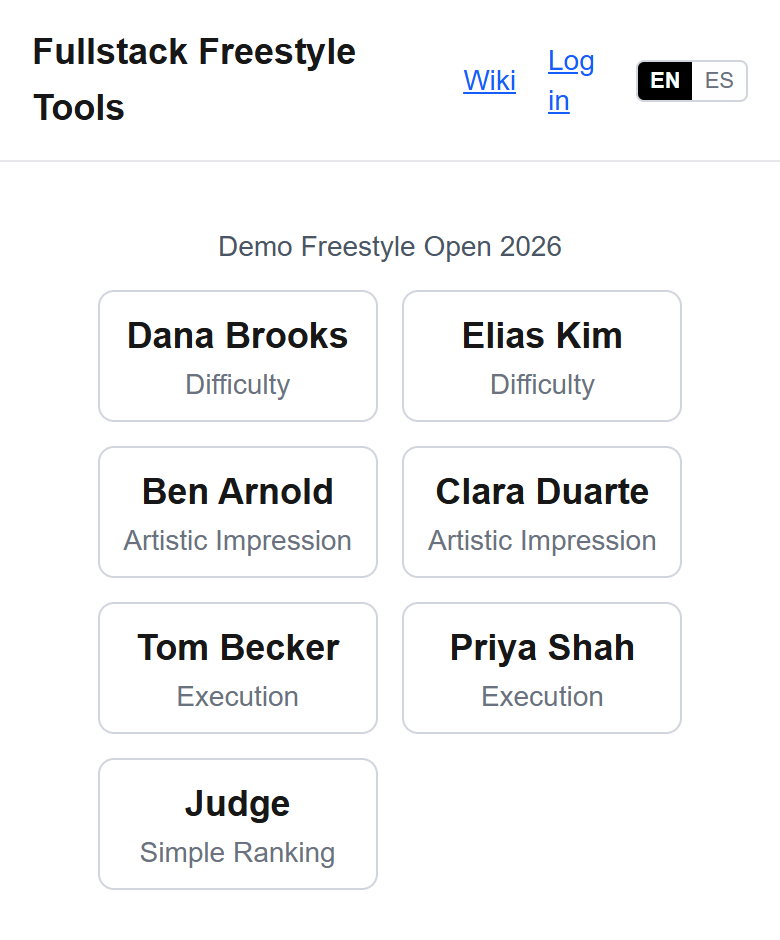
For a Simple Ranking pool, judges press the event's Judge button instead and rank the teams with the up and down arrows; Submit unlocks once every team has a rank. They rank the playing pool, so choose it on the Play tab first. The Play tab's Judges section shows the link and a QR code to open it.
Enter the judge PIN
Type the 2-digit PIN from the Head Judge page. Tick Remember this device so it isn't asked again.
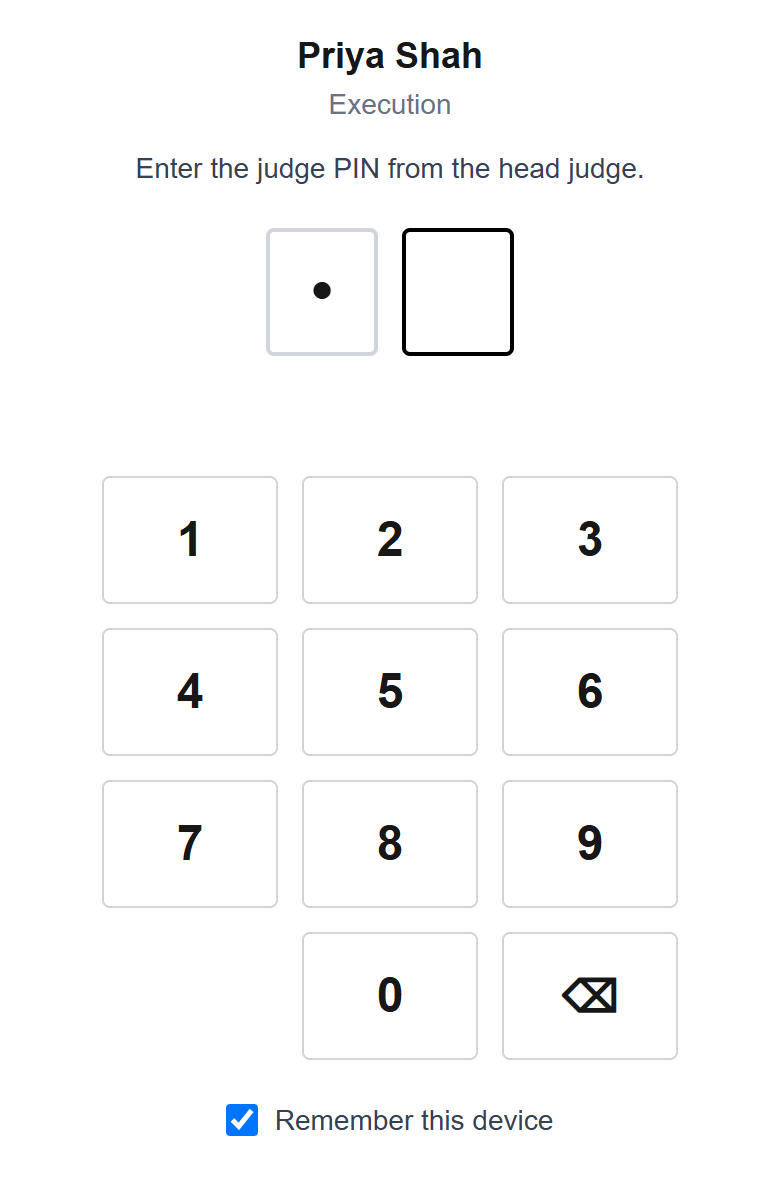
Leave the screen open
The screen is the judge's seat. It follows the playing pool and team by itself, so set it up once and leave it. When the head judge clicks on the first throw, the judge's timer starts and they take notes.
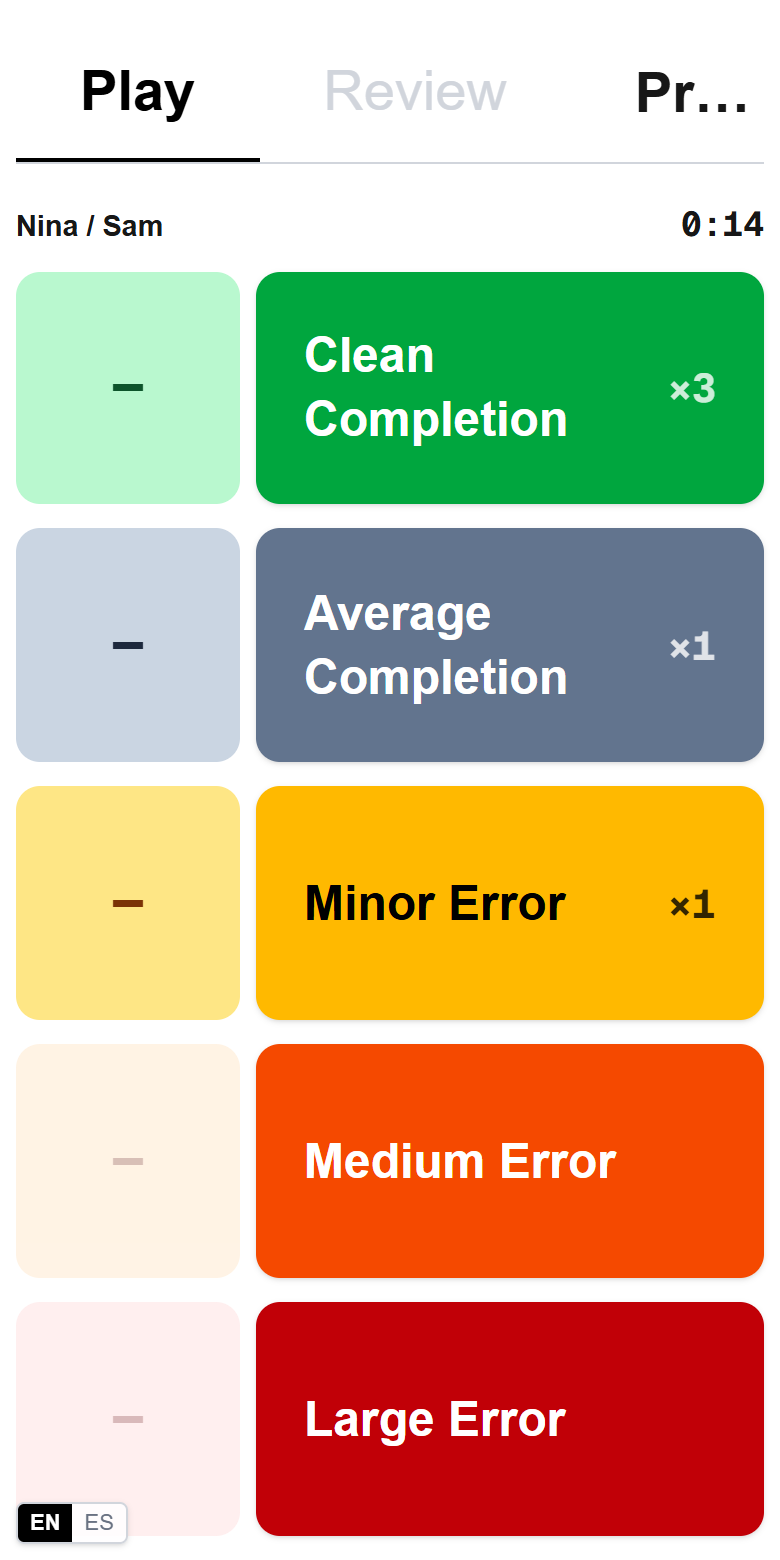
If a judge's button is missing, check in this order
- The division's Rules are Fpa2027 (not Fpa2020), and Save settings was clicked.
- The event has Playing turned on.
- The judge is assigned to the pool that is playing right now.
- The device is signed out.
Step 5: Get the results
Watch the results live
The Results tab on Head Judge shows a pool's results as the judges submit: every judge's score, the totals and places, and a graph of each team's routine.
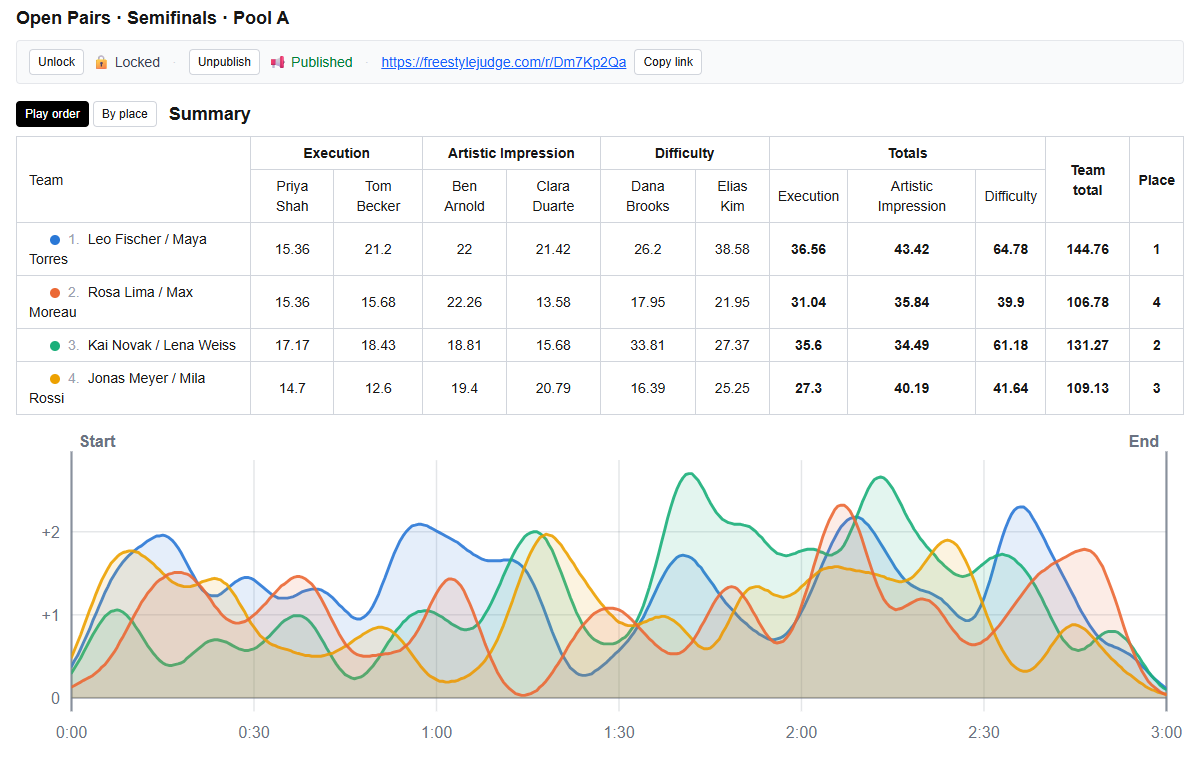
Publish and share the link
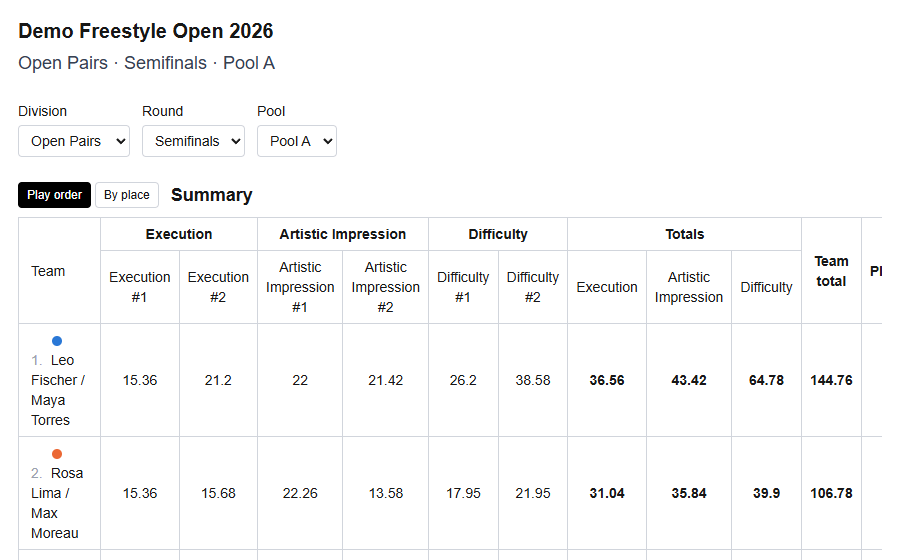
Every pool has its own public link (no sign-in), like freestylejudge.com/r/Yx7Kp2Qm. At the top of the pool's results, click Publish results, then Copy link. Paste it into an email, a chat or a post.
- Before publishing, the link shows only the teams in play order and the judges' names.
- After publishing, it shows the full results, with the judges never named (only "Difficulty #1" and so on), so it is safe to post publicly.
- The page has Division, Round and Pool menus to reach every other pool of the event, so one link is enough for the whole event.
- Publishing also posts the results to the event's Discord channel, if one is set.
Practice and help
- The Judging Trainer (Control Panel) is a practice pool of 8 teams where you play the head judge and every judge. Nothing is saved.
- Head Judge and the Event Creator have a chat button (bottom right) that answers questions about the tools.